
EWG's Technology for Instruction Journey
Monday, February 1, 2016
Locating the RTI Metcalf folder
There has been some confusion about how to find the RTI Metcalf folder. I hope this video can help bring some clarity. If it doesn't, feel free to contact me. I'd be happy to help you find the RTI Metcalf folder.

Thursday, January 28, 2016
Aspen Documentation and Support Videos
| Aspen Help Video Tutorial Page |
Friday, January 22, 2016
Cloud Vs. Flash Vs. Other
A few weeks ago, several colleagues imbued with an abundance of cloud storage skepticism grilled me about cloud storage. It was clear from the start that they did not (knowingly) use cloud storage, and wanted to steer clear of anything cloud related. Later, I thought it important to share a summary of our conversation. Here it is.
What is the cloud?
The cloud has long been a colloquial term for a bunch of computers and servers connected by equipment and software to store, process, and transmit information. When nerds refer to 'the cloud', they do so because lumping all that 'stuff' into a single term is convenient. Microsoft, Amazon, Google, Dropbox, Apple and a bunch of other companies provide a variety of cloud storage and related services.
Why should I save my files in the cloud?
Several good reasons come to mind. The convenience of being able to access your files from any device and any location with a network connection is powerful. Sharing your files with others is also a good reason to use cloud storage. Say goodbye to tacky email attachments forever; share via cloud storage. With cloud storage, backups happen automatically. Most companies provide an uptime guarantee and store data in multiple, geographically disparate locations to protect your data against fire, bombs, or natural disasters. Jeff B., our district's IT Director reports that in the event that you trash a Google Drive file and then empty your trash can the school's IT department can recover those trashed files for about thirty days after you empty your trash. Trashed file recovery is a nice security blanket.
Is storing files in the cloud safe or secure?
First, if the NSA, a persistent hacker in Connecticut, or a nation-state backed group wants any of your data -- stuff on your iPad, iPhone, Windows desktop, MacBook -- chances are high they already own it. But relax. As an individual, you're not an attractive target. Further, we need to get over the notion that our flawed home routers, venetian blinds, and deadbolts can do a better job of securing our data than corporations who have the talent and ability to build and deploy fortress like solutions. Cloud storage providers have elaborate security policies for physical site access, and they also have the brightest geeks on the planet securing logical access to your stuff. Combined with two factor authentication and strong passwords, your encrypted cloud data is pretty tough to steal.
But I like my flash drive.
I am not sure if the washer or dryer causes the most damage. Flash drives do not reliably tolerate laundry cycles, though. And, they fall out of pockets, are susceptible to static shock, mechanical failure, theft, loss, and ingestion by your curious Newfoundland puppy. Flash drives can be an okay storage and backup solution, but don't count on them for primary, working storage. Some of our colleagues have already been burned by flash drive failure and loss. Don't be the next multi-year data loser. Every flash drive will, at some point, break. Back yours up (to the cloud) before the drive fails.
But what about the documents and desktop folders on my MacBook?
Great! Are you backing the documents and desktop folders up on a regular and frequent basis? See the flash drive rant above. If your MacBook breaks and all its smoke escapes, and you don't have a backup, you lost your data.
I'm still not convinced. Has anyone ever seen one of these cloud things?
Well, sure. The data centers really exist. Here are a couple of videos that summarize what cloud storage buildings and equipment look like. EWG is primarily using Google's cloud storage, so the included videos are of Google data centers, but the representations made in the videos are typical of the data centers of other service providers.
If you would like to have a conversation about cloud storage, how you might get iCloud, Google Drive, One Drive, or Dropbox to play nicely together, or if you would like to double check your storage practices with a goal of preventing data loss, let me know. I'd be happy to work with you.
 |
| Typical Data Center Image: Wikieditor234 |

What is the cloud?
The cloud has long been a colloquial term for a bunch of computers and servers connected by equipment and software to store, process, and transmit information. When nerds refer to 'the cloud', they do so because lumping all that 'stuff' into a single term is convenient. Microsoft, Amazon, Google, Dropbox, Apple and a bunch of other companies provide a variety of cloud storage and related services.
Why should I save my files in the cloud?
Several good reasons come to mind. The convenience of being able to access your files from any device and any location with a network connection is powerful. Sharing your files with others is also a good reason to use cloud storage. Say goodbye to tacky email attachments forever; share via cloud storage. With cloud storage, backups happen automatically. Most companies provide an uptime guarantee and store data in multiple, geographically disparate locations to protect your data against fire, bombs, or natural disasters. Jeff B., our district's IT Director reports that in the event that you trash a Google Drive file and then empty your trash can the school's IT department can recover those trashed files for about thirty days after you empty your trash. Trashed file recovery is a nice security blanket.
Is storing files in the cloud safe or secure?
First, if the NSA, a persistent hacker in Connecticut, or a nation-state backed group wants any of your data -- stuff on your iPad, iPhone, Windows desktop, MacBook -- chances are high they already own it. But relax. As an individual, you're not an attractive target. Further, we need to get over the notion that our flawed home routers, venetian blinds, and deadbolts can do a better job of securing our data than corporations who have the talent and ability to build and deploy fortress like solutions. Cloud storage providers have elaborate security policies for physical site access, and they also have the brightest geeks on the planet securing logical access to your stuff. Combined with two factor authentication and strong passwords, your encrypted cloud data is pretty tough to steal.
But I like my flash drive.
I am not sure if the washer or dryer causes the most damage. Flash drives do not reliably tolerate laundry cycles, though. And, they fall out of pockets, are susceptible to static shock, mechanical failure, theft, loss, and ingestion by your curious Newfoundland puppy. Flash drives can be an okay storage and backup solution, but don't count on them for primary, working storage. Some of our colleagues have already been burned by flash drive failure and loss. Don't be the next multi-year data loser. Every flash drive will, at some point, break. Back yours up (to the cloud) before the drive fails.
But what about the documents and desktop folders on my MacBook?
Great! Are you backing the documents and desktop folders up on a regular and frequent basis? See the flash drive rant above. If your MacBook breaks and all its smoke escapes, and you don't have a backup, you lost your data.
I'm still not convinced. Has anyone ever seen one of these cloud things?
Well, sure. The data centers really exist. Here are a couple of videos that summarize what cloud storage buildings and equipment look like. EWG is primarily using Google's cloud storage, so the included videos are of Google data centers, but the representations made in the videos are typical of the data centers of other service providers.
If you would like to have a conversation about cloud storage, how you might get iCloud, Google Drive, One Drive, or Dropbox to play nicely together, or if you would like to double check your storage practices with a goal of preventing data loss, let me know. I'd be happy to work with you.
Tuesday, January 5, 2016
Email Help And Organization
 Today, I saw a teacher's school email drafts folder with over two hundred draft emails. That's over two hundred emails that got started, but were never sent! She refused to let me take a screen shot. We both had a good laugh.
There are some solid options built into our district's email system to keep email from being a scourge. If you would like help establishing email filters and organizing your email or wonder if Priority Inbox could lighten your email burden, let me know.
Monday, January 4, 2016
Display Cable Failures
 |
| Mini display port to HDMI adapter binding on a stack of paper. Ouch! |
Wednesday, December 23, 2015
Google Account Security Checkup
Over the course of a school year, you might grant permission for a number of apps and web based resources to access your Google account. Doing so is convenient because it reduces the need to create and memorize login credentials for every service and tool you might try. Granting apps permission to use your Google credentials also creates a richer, more robust application ecosystem. Apps like WeVideo, Pixlr, and dozens of others really work well when they can open and save files directly with your Google Drive.
Still, it is important to be mindful of the apps to which you granted permissions and periodically review the permissions. Did you stop using an app? Revoke its permissions. Did a company close operations and take your favorite app into a digital oblivion? Revoke the app's permissions. Did your favorite app fall out of favor, or is it something you just don't use anymore? Revoke its permissions.
Revoking app permissions is part of a general Google security checkup. The security checkup is quickly and easily done. You should perform it on your school account, and especially on any personal or Google accounts you have. The holiday break is a great time to run the security check and it takes just a few minutes. The video below demonstrates one way to launch and complete the Google Account Security Checkup.
Friday, December 11, 2015
Managing Your One To One Classroom
Kids are watching videos in my class! Kids are streaming music, texting, or doing other stuff on their laptops in my class. They're cheating on the online tests! Their phones are always out! I can't stand it anymore! I want a tool that lets me view their screens and lock them down! I am going to buy a jammer to block cell phone signals in my classroom (drawing unwanted FCC attention as a byproduct)! I have heard the above loudly and clearly from several high school teachers and understand the concerns. After a few years in a computer and technology rich education environment, you might think I have an easy button solution. I don't. But, I will share some thoughts, hoping they are received in the collegial vein they are offered.
I have used Lan School (and students have written about how to disable tools like Lan School), and similar screen monitoring tools. When used for collaboration, management tools like Lan School are excellent at projecting student screens or helping a student remotely. But used in an Orwellian capacity, they fail, and are even more abysmal when used to meet punitive measures. They are about as well received by students as an overbearing district content filter or a computer use monitoring policy would be received by you, a classroom teacher. Lan School and similar tools are not a replacement for clear, concise, and consistently applied classroom management strategies. Further, screen monitoring might help you enforce the life and career skills accountability and productivity, but screen monitoring removes a student's ability to authentically practice accountability and productivity as outlined by p21.org. Screen monitoring will give you one more thing to login to, one more thing to monitor, and one more thing to divert your own attention from the real action; face to face, one on one interaction with kids. At best, screen monitoring software is a sandbag on the levy of life. Students still have unfettered access to the world's knowledge and entertainment base from their personal devices and absent effective classroom management strategies will, like water, overrun your sandbag. Considering a nerdy perspective, Lan School would be one more performance sapping software on devices, and it would potentially generate performance degrading network traffic.
One key to tech classroom management is promulgating firm, clear, consistent expectations. If students shouldn't be on their laptops, the laptops should be closed. If students have no reason to be using a cell phone, the phone should be out of sight. Some teachers effectively employ phone jails or collection boxes students voluntarily use. You are the boss, the setter of tones and paces in your room. Model your expectations. Practice your expectations. Reinforce your expectation again and again. When students need to be called out or parents need to be called, be a proactive, consistent communicator. Live by your rules and make them an intrinsic part of your learning environment. Beth Brocato offers this iPad checklist as a great way to begin the conversation about your classroom expectations.
There are steps that educators can take immediately to help manage the high tech classroom. I offer this slightly dated classroom management article as a conversation starter, where Author Mike Hasley opines,
The article is vintage 2007, around the birthday of the smartphone, so does not mention smart phones at all. Yet the new gadgets are in your classroom adding to your list of concerns. Maybe we can sequel the article with modern best practices that reflect classroom technology as it stands today. What are your best practices to effectively manage classroom technology?

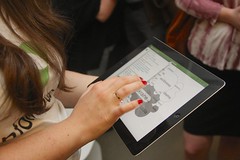 |
| Image: NYC Media Lab |
I have used Lan School (and students have written about how to disable tools like Lan School), and similar screen monitoring tools. When used for collaboration, management tools like Lan School are excellent at projecting student screens or helping a student remotely. But used in an Orwellian capacity, they fail, and are even more abysmal when used to meet punitive measures. They are about as well received by students as an overbearing district content filter or a computer use monitoring policy would be received by you, a classroom teacher. Lan School and similar tools are not a replacement for clear, concise, and consistently applied classroom management strategies. Further, screen monitoring might help you enforce the life and career skills accountability and productivity, but screen monitoring removes a student's ability to authentically practice accountability and productivity as outlined by p21.org. Screen monitoring will give you one more thing to login to, one more thing to monitor, and one more thing to divert your own attention from the real action; face to face, one on one interaction with kids. At best, screen monitoring software is a sandbag on the levy of life. Students still have unfettered access to the world's knowledge and entertainment base from their personal devices and absent effective classroom management strategies will, like water, overrun your sandbag. Considering a nerdy perspective, Lan School would be one more performance sapping software on devices, and it would potentially generate performance degrading network traffic.
One key to tech classroom management is promulgating firm, clear, consistent expectations. If students shouldn't be on their laptops, the laptops should be closed. If students have no reason to be using a cell phone, the phone should be out of sight. Some teachers effectively employ phone jails or collection boxes students voluntarily use. You are the boss, the setter of tones and paces in your room. Model your expectations. Practice your expectations. Reinforce your expectation again and again. When students need to be called out or parents need to be called, be a proactive, consistent communicator. Live by your rules and make them an intrinsic part of your learning environment. Beth Brocato offers this iPad checklist as a great way to begin the conversation about your classroom expectations.
There are steps that educators can take immediately to help manage the high tech classroom. I offer this slightly dated classroom management article as a conversation starter, where Author Mike Hasley opines,
Let the kids know when and when not to have their laptops out for use. If you are doing a non-laptop activity, no kids should be using laptops.
The article is vintage 2007, around the birthday of the smartphone, so does not mention smart phones at all. Yet the new gadgets are in your classroom adding to your list of concerns. Maybe we can sequel the article with modern best practices that reflect classroom technology as it stands today. What are your best practices to effectively manage classroom technology?
Subscribe to:
Posts (Atom)